
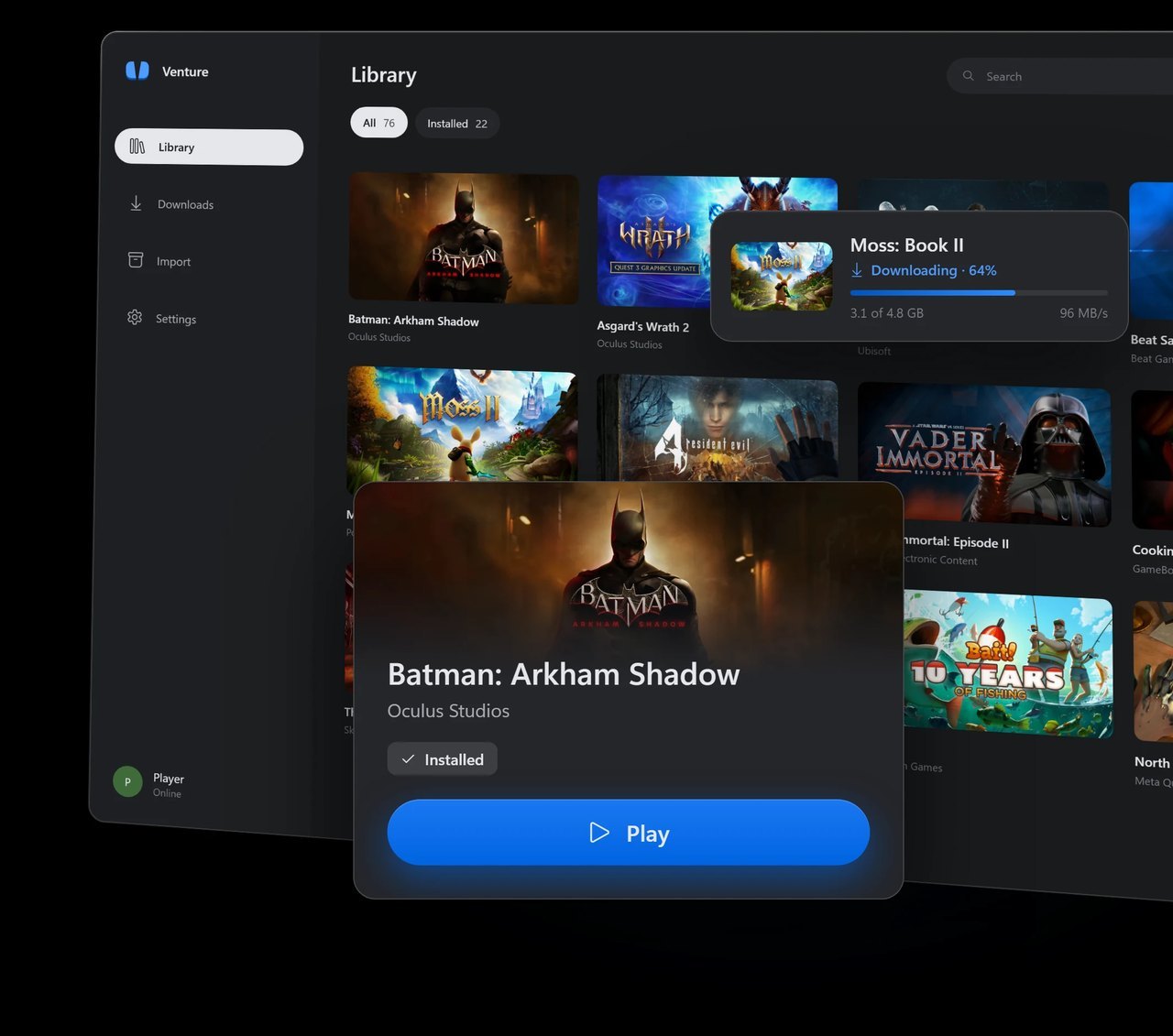
Venture is a free Windows and Linux app that downloads the Quest games your Meta account owns and runs them on a PC VR headset. You do not need a Quest, and nothing is streamed. The Android game runs on your PC, its graphics go through ANGLE, Google's translation layer for OpenGL ES, onto your GPU, and the frames go to whatever OpenXR runtime your headset already uses.
SoftwareOctober 29, 2026
What the Venture Quest Emulator Does With Your Meta Account, Read From Its Source
By Nina Castillo
Staff Writer, VR.org
Advertisement
It comes from Villagers654, the developer behind RiftLift, which does a similar job for Rift-era PC games you own. Version 0.1.0 went up on GitHub at 23:06 UTC on October 28. Version 0.1.0.3 followed ten hours later. The license is GPL-3.0, and by Thursday morning Pacific the Windows installer had been downloaded a little over 500 times.
Road to VR's write-up on Thursday advised holding off, because Venture asks you to sign in with your personal Meta account and nothing guarantees Meta will not ban it. Fair worry. The source is public, though, so most of it can be answered in more detail than that. Everything below comes from the code at commit 0eea1ad, the one behind 0.1.0.3.
Your password stays on Meta's page
Choose Sign in with Meta and Venture opens Meta's own login page, auth.meta.com, inside an embedded Microsoft Edge window running in private mode. Venture's own interface never asks for your email or password. That window will only navigate to Meta's domains (meta.com, oculus.com, facebook.com, instagram.com and fbsbx.com), with an exception for embedded security-check frames. Its developer tools are off, and nothing in the code injects a script into Meta's page.
What Venture keeps afterward is an access token, a key that lets it act for your account without the password. On Windows it is encrypted with DPAPI, the encryption Windows ties to your user login, and saved under %LOCALAPPDATA%\Venture. On Linux it goes into the system keyring. The sign-in screen itself tells you sign-ins are only used to talk to Meta.
The code backs that up. Outside your own PC, the app talks to Meta for sign-in, your library and downloads, and to GitHub once per launch to check for a newer release, which you can switch off. The one other address is dpaste.com, a paste site, and only when you click Report issue or Upload debug report. Before anything goes up, the report is scrubbed of tokens, your Windows username and your account name. There is no analytics or crash-reporting library in the code. The games you run still reach their own servers, the same as they would on a Quest.
It checks what you own, every time
Before any download, Venture asks Meta for your account's active entitlements, Meta's word for the list of apps you own. If the game is not on it, the download stops with "Refresh your library: ownership could not be verified for this download." Files come only from Meta's own delivery servers at securecdn.oculus.com.
The check repeats while you play. When a game asks whether you own it, Venture asks Meta live, each time, and the README for that part of the runtime is blunt about failure: "Errors, wrong accounts/platforms/packages, revoked grants, and network failures never grant ownership. There is no offline success cache." It refuses App Sharing too, Meta's family library feature: "Each account must own the game."
That is a stricter line than AVP Play, the Vision Pro project this site covered on October 10, which answers each game's own license check with yes.
One door is wide open, though. The Import page takes any APK, ZIP or game folder "with no account or ownership check," and the developer notes say that includes a modified build. It can also copy installed games off a Quest in developer mode. Venture changes nothing itself, but it will run what you hand it. Leave Import alone unless the files came off your own headset.
Meta can see it
No code can tell you what Meta will decide. It can tell you what Meta sees. Every request Venture sends to Meta's launcher APIs carries the user agent "Venture/0.3 native" (the name an app gives when it connects), and the sign-in link carries utm_source=venture. Venture's traffic is labeled, not disguised.
Advertisement
The project's disclaimer says it has no connection to Meta and adds: "You are responsible for following the law, platform terms and software licences." If your Quest library matters to you, that sentence is the risk, in the developer's own words. For a first release, it is a good sign that the careful work went into the parts that touch your account.
What actually runs
The compatibility list, last updated October 28, has 25 games, all marked working on both Windows and Linux. Read the definition before the list. A check means the game "renders without major rendering errors," and "a check does not require a full gameplay pass." Sixteen of the 25 are Quest exclusives, including Asgard's Wrath 2 and Batman: Arkham Shadow.
The issue tracker fills in the rest. One game does not start at all. Resident Evil 4 crashed on an 8 GB RTX 3060 Ti that ran out of video memory, and the developer's reply was candid: "Venture currently doesn't compress textures at all." Version 0.1.0.2 falls back to system memory instead of crashing.
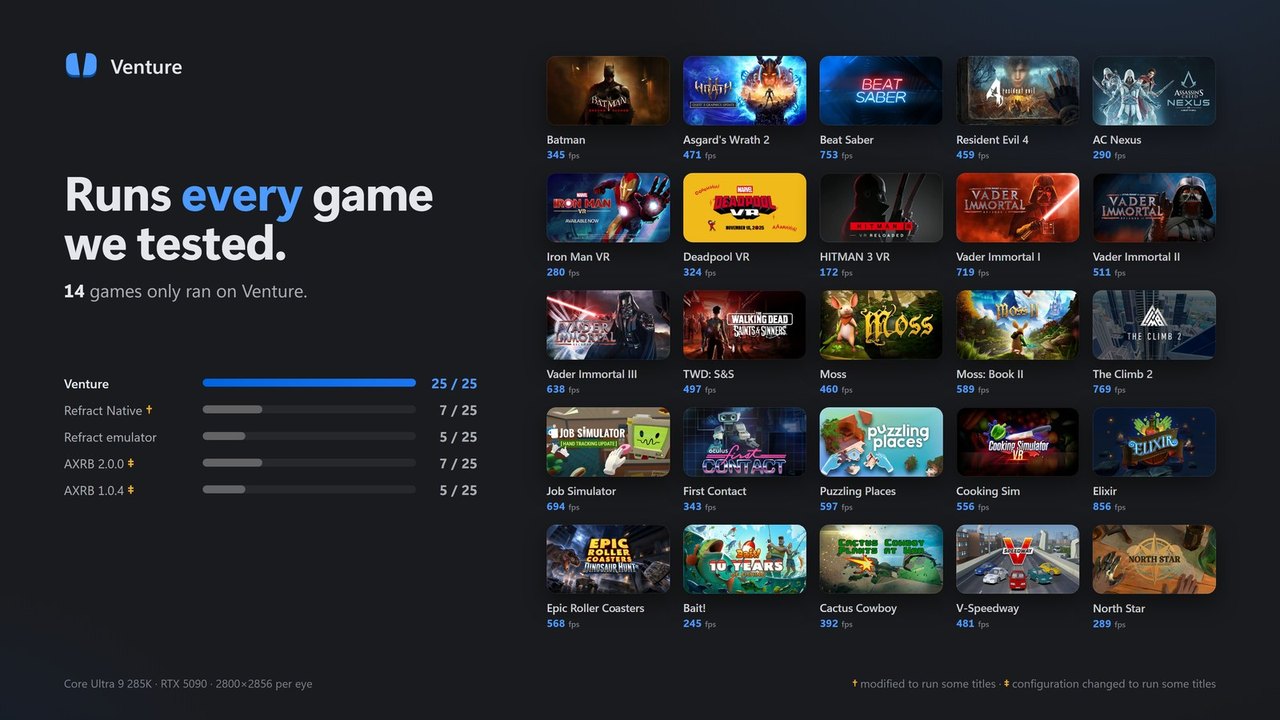
The speed numbers are the project's own, measured on a Core Ultra 9 285K and an RTX 5090 at 2800 by 2856 per eye. On that machine the site charts Venture at 1.3 to 2 times the average frame rate of AXRB and Refract, the two earlier projects that run Quest games on a PC, and says 14 of its 25 games ran only on Venture. Its README thanks AXRB "for pioneering Quest emulation on PC VR," which is a nice thing to put in a first release.
How to try it
What you need: 64-bit Windows 10 or 11, or Linux. A PC VR headset whose OpenXR runtime supports Vulkan: SteamVR or Quest Link on Windows, Monado on Linux. Microsoft's WebView2 runtime for the sign-in window. The Meta account that bought the games. No minimum GPU is published, and the one memory crash so far was on an 8 GB card.
- Download the installer. Get Venture-windows64-setup.exe from the releases page. It installs for your user only and needs no admin rights. The repo's release workflow has no code-signing step, so Windows may warn you about an unknown publisher.
- Sign in with Meta. Use the account that owns your Quest games. On Linux, use the AppImage, since the Flatpak build cannot sign in yet.
- Check the list, then install. Find the game on the compatibility list, then pick it in your Library and click Install.
- Start your headset's runtime, then press Play. Version 0.1.0.1 fixed a black screen on Virtual Desktop's runtime, and 0.1.0.2 fixed one on Meta's Link runtime, so update if you grabbed an early build.
Two settings are worth knowing. Add games to Steam is on by default, so every game you install also turns up in your Steam library as a shortcut. The update check can be switched off. Problems go to the project's GitHub issues, and venture-emu.org links the Discord.
Use your own account and your own games, and nothing else. If anything offers you a Quest game file, close the tab.
Advertisement