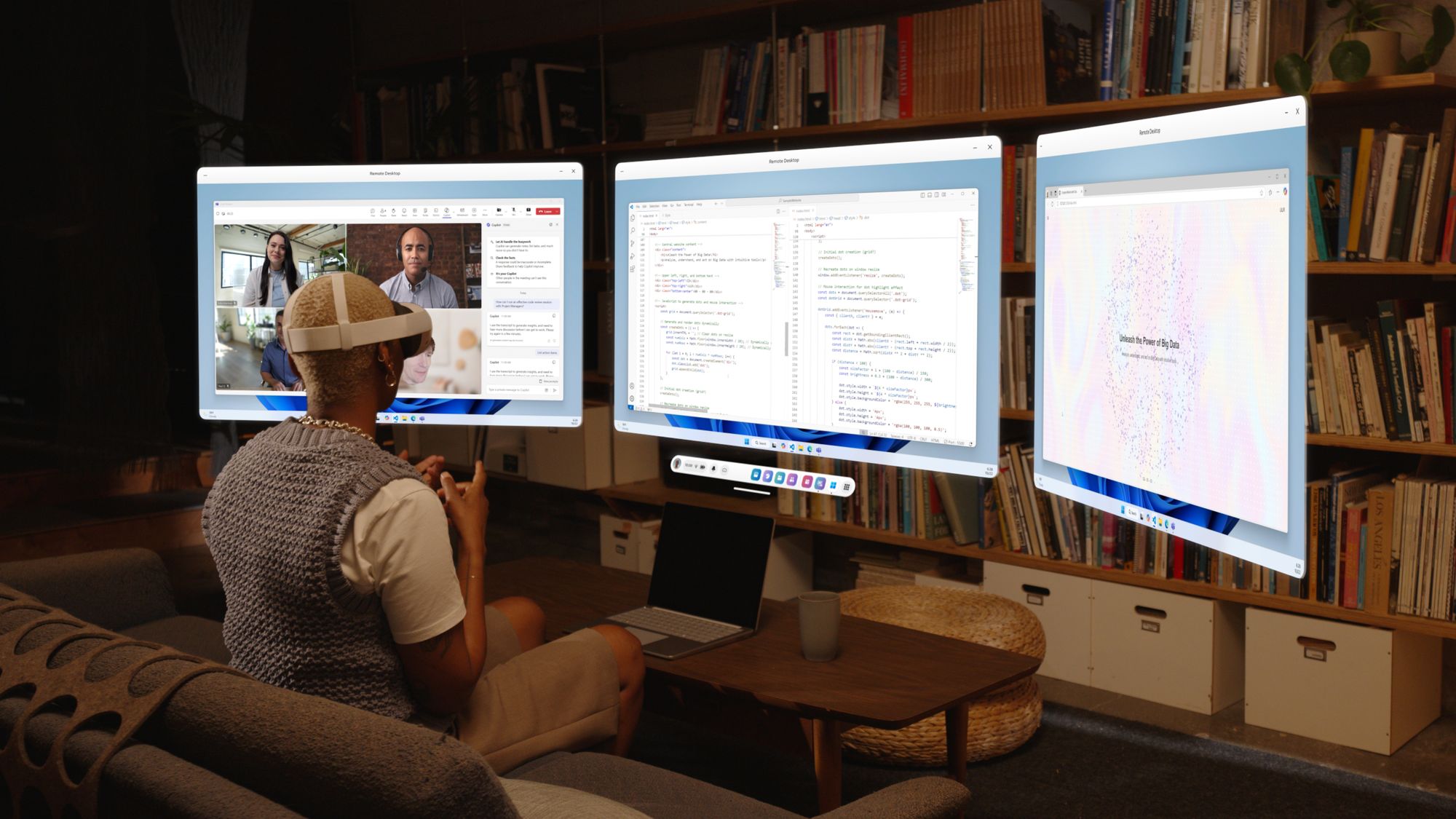
A USB-C cable is now enough to put your Windows 11 desktop inside a Quest 3 or 3S. Microsoft added wired streaming to Mixed Reality Link, the Windows app that pairs with Meta's Virtual Display app on the headset, and announced it on November 5 for version 26.10120.9280.1 and newer. No Wi-Fi involved. Once the two are paired, no internet either.
SoftwareNovember 28, 2026
Quest's Virtual Display Now Runs Windows Over a USB Cable, and Your PC's Mouse Can Leave the Desktop
By Nina Castillo
Staff Writer, VR.org
Advertisement
Virtual Display is the app formerly called Remote Desktop: your PC's screens as windows around you, for work, browsing or a movie. It is not Quest Link, which is for running PC VR games. Different app, different job.
Setting it up
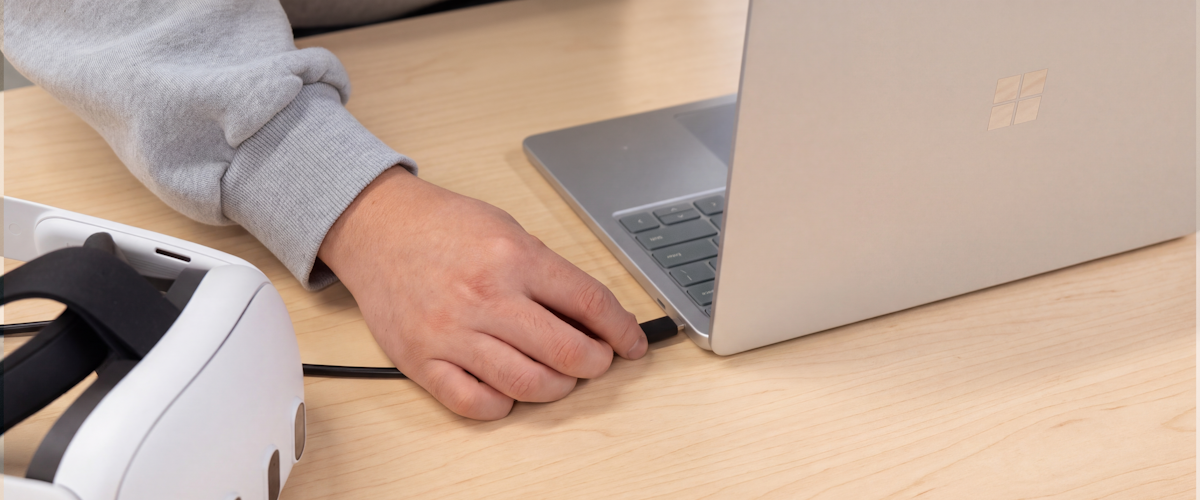
What you need: a Windows 11 PC on version 22H2 or newer, Mixed Reality Link 26.10120.9280.1 or newer, a Quest 3 or 3S, and a USB data cable with USB-C on the headset end. Microsoft's support page sets USB 2.0 (480 Mbps) as the minimum and recommends USB 3.x at 5 Gbps or faster, for both the port and the cable. Charge-only cables will not work.
- Update the PC app. Install or update Mixed Reality Link from the Microsoft Store.
- Turn on USB for apps. On the Quest, open Settings, then Link, and enable "USB connection for apps."
- Plug in. Connect the headset to the PC with the data cable.
- Pair. Open Virtual Display on the headset and follow the prompts to pair with the PC, or pick one you paired before. Over USB there is no QR code to scan and no PIN to type.
If step 2 has no such option, your headset does not have the feature yet. Microsoft said Meta would roll out the headset side over the week after November 5, separately from the PC app.
The setting's name gives away how it works. It uses USB NCM, a standard way to run a network connection over a USB cable instead of Wi-Fi, which Quest picked up in Horizon OS 2.5. Steam Link and Virtual Desktop's beta channel already use the same permission, UploadVR notes. So the cable is not a new pipe for Microsoft alone. It is the headset's USB port acting like a tiny private network.
Your mouse can leave the window now
The second change has no release note yet. UploadVR found a setting called Computer Inputs in Virtual Display and tested it. With it on, your PC's mouse and keyboard are no longer stuck inside the Windows desktop: move the cursor past the edge and it keeps going, into Horizon OS and the other apps open in the headset, as if the mouse were plugged into the Quest.
That fixes an annoying loop. Before, typing in Windows meant the PC keyboard, and touching anything outside it meant putting a hand up or grabbing a controller. Now one mouse covers both. Two caveats from UploadVR's testing: the cursor can disappear from the headset's interface while you also use Touch controllers, and switching Computer Inputs off does nothing to a mouse or keyboard connected straight to the headset. Since Microsoft has not documented it, treat it as rolling out rather than something your headset is guaranteed to have today.
The microphone and camera, briefly
The other half of the recent changes is older. Since version 26.9105.9070.0 in September, Windows sees the headset's microphone and cameras as ordinary devices, as Jordan covered then. In Discord, Teams or Zoom, pick "Mixed Reality Link Microphone" for your voice, "Mixed Reality Link Passthrough" for the headset's view, or "Mixed Reality Link Avatar Camera" to show up as your Meta avatar. Check which camera you picked before you join. Passthrough shows your room, not your face.
The November 16 release, 26.11050.1020.0, fixed the headset and avatar cameras on PCs with AMD graphics and a crash when a session ended with the headset mic in use. Microsoft's November 2 notes called that build the 18th release of Mixed Reality Link this year. The cable is the one that changes where you can use it, though. A desk with no Wi-Fi password, or a tray table at 35,000 feet: plug in, pair once, and your desktop comes with you.
Advertisement